


ELITE SERIES FIRMWARE UPGRADE
Upgrade your Elite from your computer
Guardian Angel Station is a free app for Mac and Windows. It connects to your light with a USB-C cable and installs the upgrade.
On a Windows PC? See all downloads
On a Mac? See all downloads
Guardian Angel Station isn’t available for Chromebooks, Linux, iPad, or phones yet.
On a phone? The upgrade installs over a USB cable, so it has to be done on a Mac or Windows computer. Enter your email and we’ll send you the link.
What you’ll need
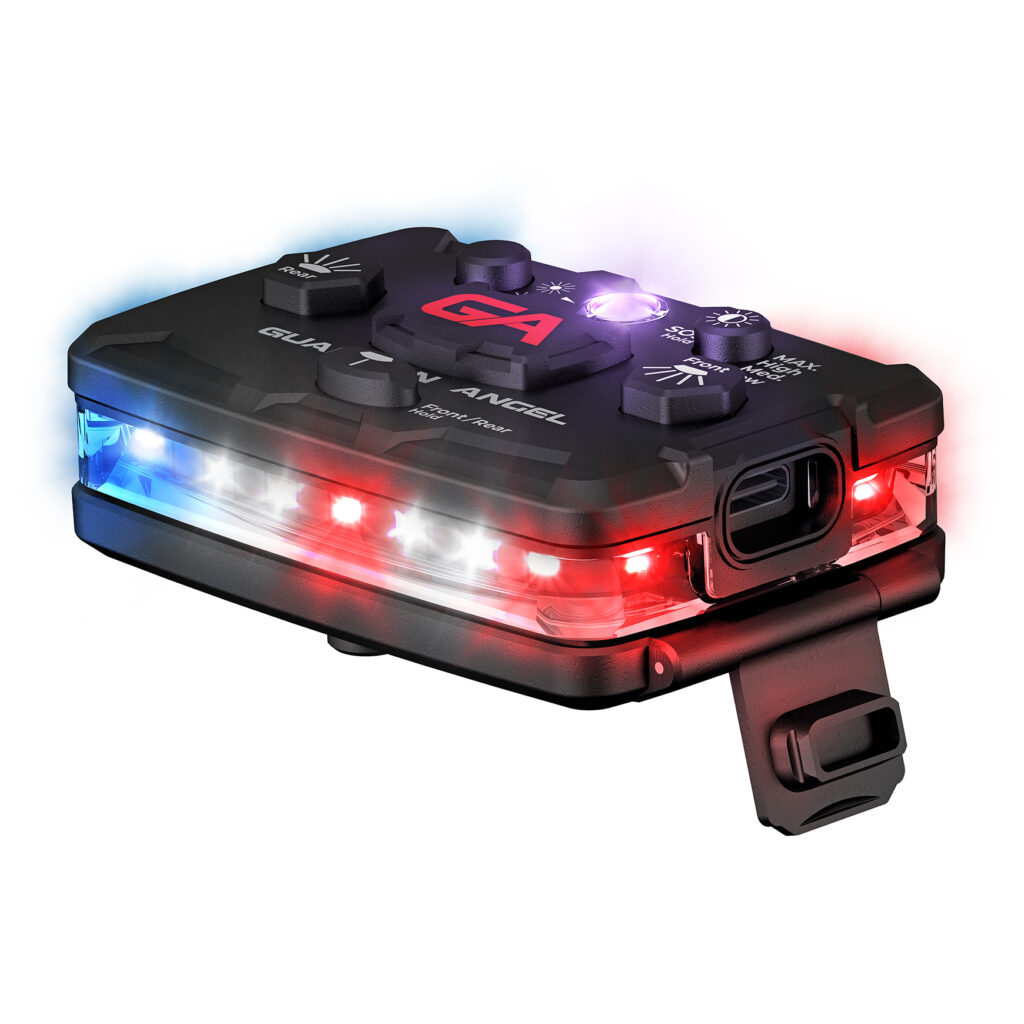
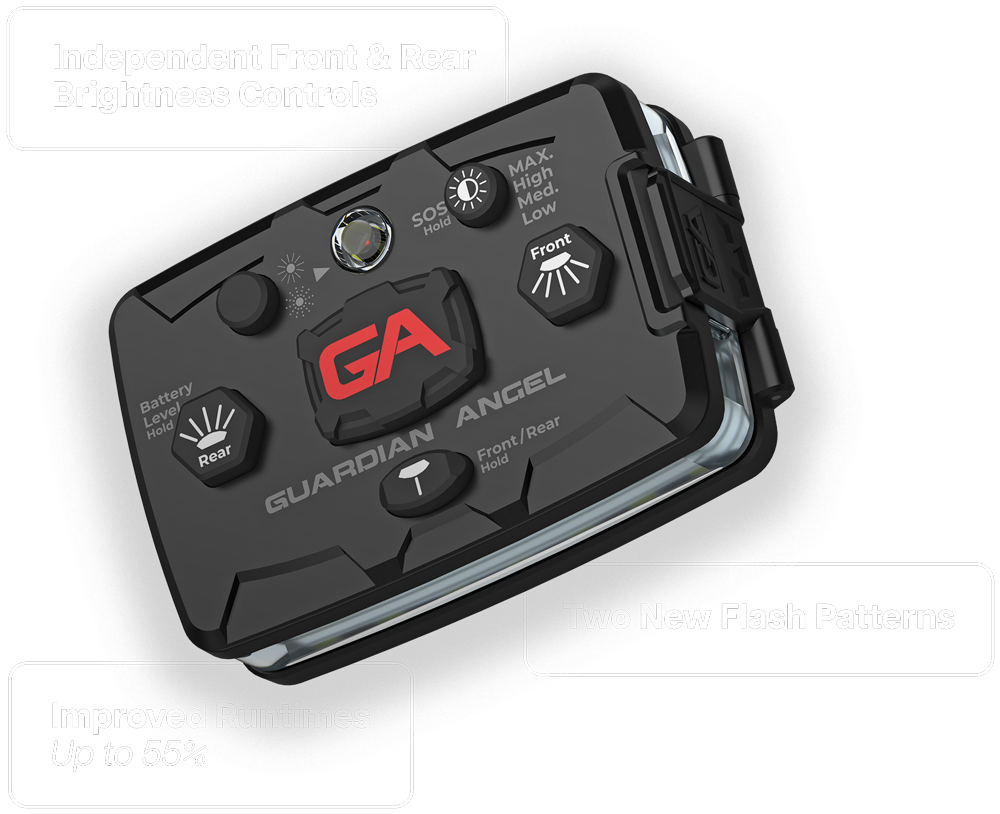
An Elite made in 2022 or later
Look for the USB-C port on the side of the light.

A USB-C cable that carries data
The cable that came with your Elite Series™ light works. Some charging-only cables won’t work. IMPORTANT: If your Elite came with a USB Type-A to Type-C cable you need to use the same cable type for the upgrade. Otherwise, a Type-C to Type-C data cable will work.
A laptop or desktop computer
You must upgrade your light from a computer. Mobile devices such as phones and tablets currently can’t be used for the update.
How it works

1
Install Guardian Angel Station app
Download the free desktop app from the Apple App Store or Microsoft app store.
2
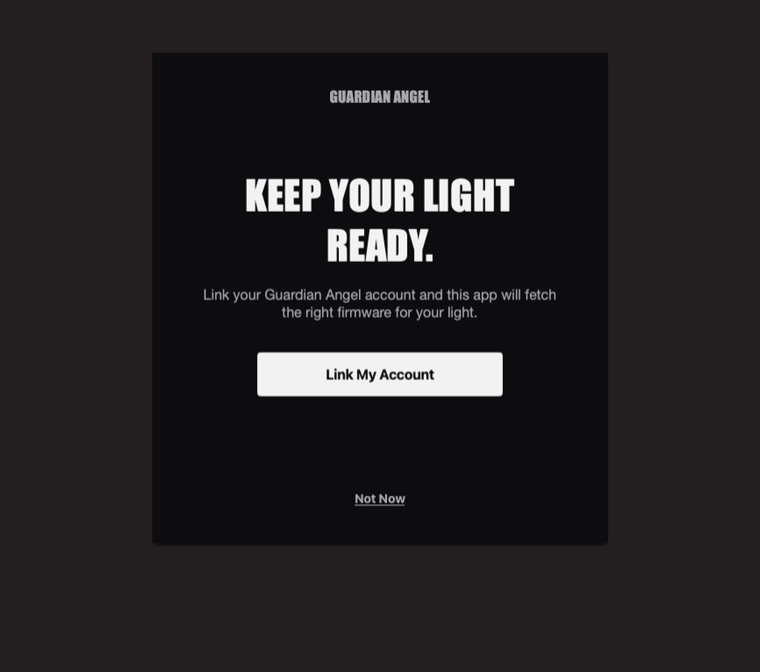
Sign in and link
The GA Station App will show a code. Approve it in your web browser with your Guardian Angel account. No account? You’ll be prompted to create one.

3
Connect your light
Plug your Elite into your computer using a USB-C data cable. The cable included with your device is guaranteed to work.

4
Activate Update Mode
Make sure your light is off. Hold the big “GA” button for 7 seconds until the top light continuously blinks fast.
5
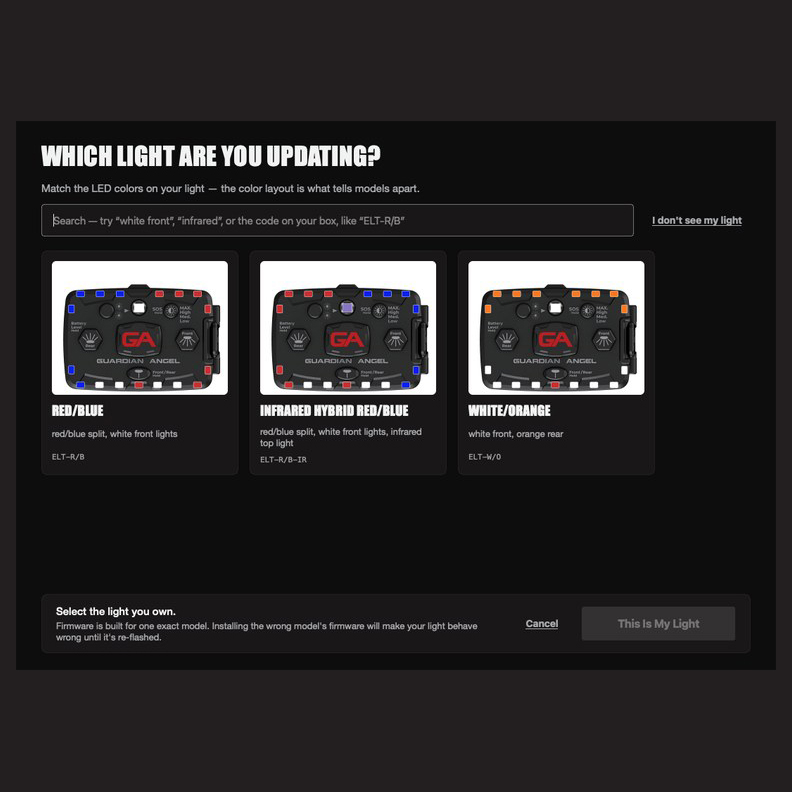
Choose your light
Type the code from the box or label (e.g. ELT-R/B), or pick the color/model that matches yours.
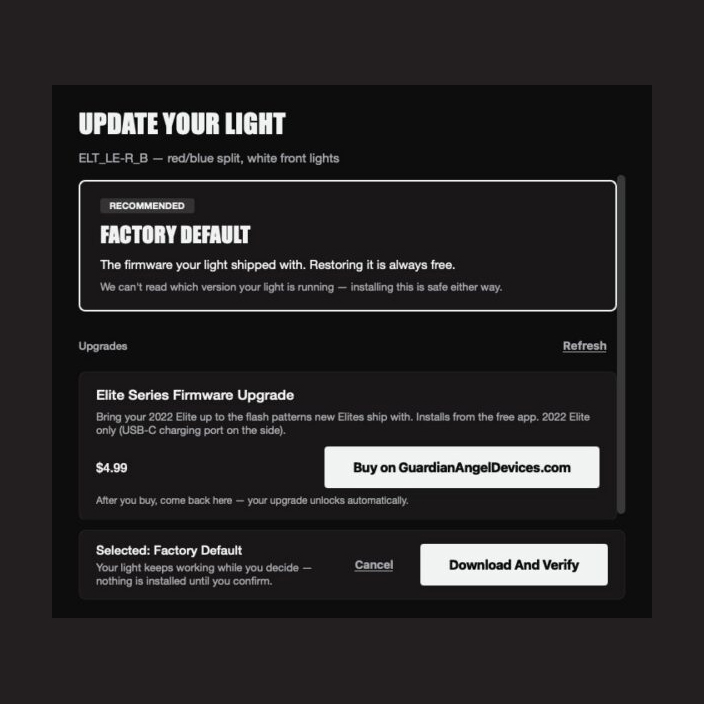
6
Install the upgrade
Buy it on our website, then install it from the app.
Beta testers: the upgrade is free in the app during the beta, no code needed.
Important To Note
You can always go back
The original Factory Default firmware is free to reinstall at any time.
Nothing to buy in the app
The app is free. The firmware is free for a limited time. After that you buy the upgrade through this website.
Help is in the app
Choose Help, then Report a Problem. It goes straight to the GA Station team.
System requirements
- MacOS 12 or later for both Intel and Apple silicon.
- Windows 10 (version 1809 or later) or Windows 11, 64-bit
- Arm-based Windows laptops (Snapdragon): not yet tested
- A free USB port and a USB cable that carries data. On a USB-C-only Mac, use a USB-C to USB-C data cable or an adapter.
- An internet connection and a guardianangeldevices.com account
Which lights
Elite lights made from 2022 on, with the USB-C port on the side. Micro lights and earlier Elites aren’t supported yet.
Installing tips
Click the accordions below to learn more.
The Mac version is in beta through Apple’s TestFlight. Click Download for Mac (TestFlight). If asked, install TestFlight from the App Store first, then open the link again and click Install. It works on both Apple silicon and Intel Macs.
Click Get it from the Microsoft Store. When the Microsoft Store opens, click Get (or Install), then Open. After that you’ll find Guardian Angel Station in your Start menu.
If the store opens in your web browser, click Get in Store app to switch to the Microsoft Store.
Complete the Survey,
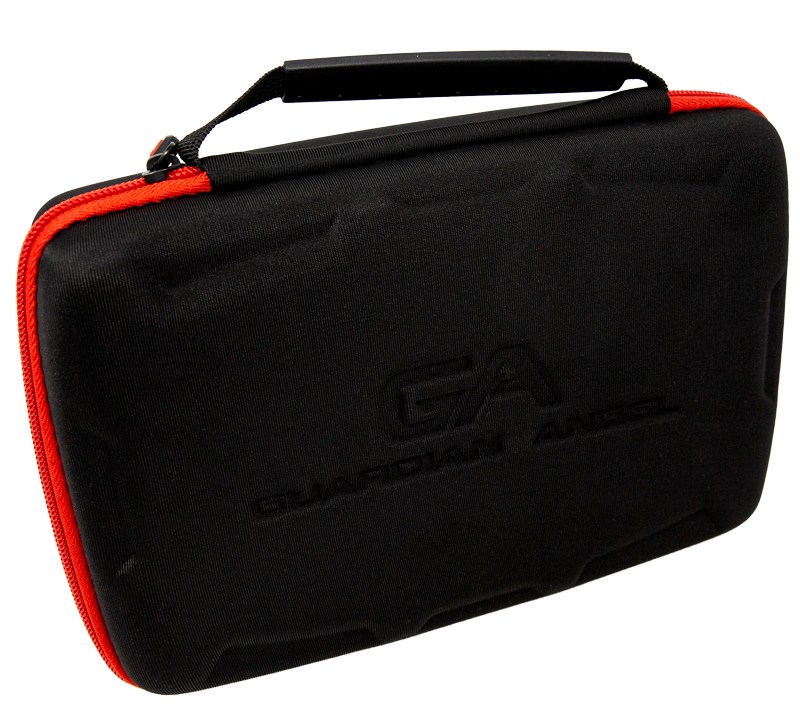
Get Free GA Carrying Case
The first 100 beta testers to complete the upgrade AND the survey will receive a GA Carrying Case for free ($25.99 value).
Once you complete the upgrade, you’ll receive an email to fill out a brief survey.